
More features, one dashboard.
See everything Billbooks can do for your invoicing, free to start.
Key Takeaways
- Open Online Payments Integration to manage gateways.
- Add account details for each payment provider.
- Save settings after every setup step.
- Offer multiple gateways to clients for easy checkout.
- Let customers pay directly from invoices.
- Use secure connections to protect transactions.
The Online Payments Integration section in Billbooks allows your customers to pay their invoices using popular payment gateways such as PayPal, Authorize.net, 2Checkout, Braintree, and Stripe.
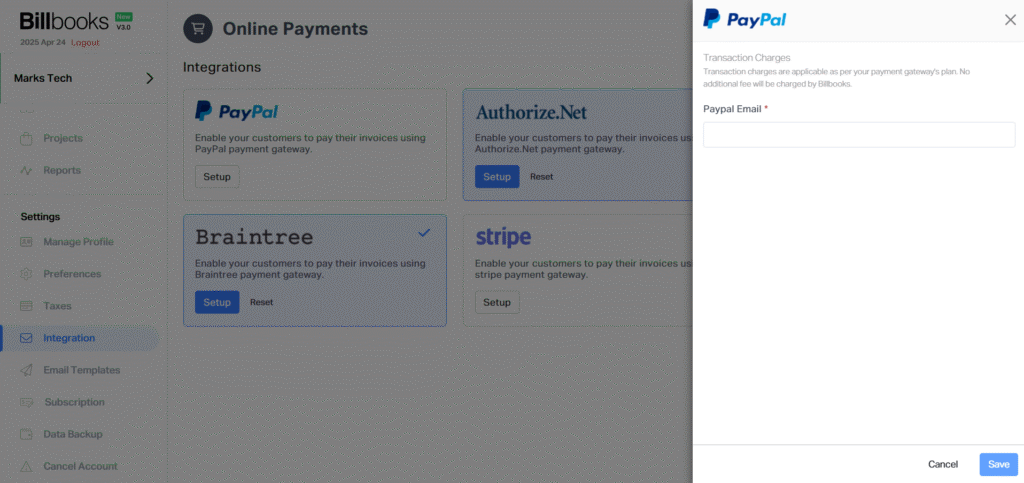
- PayPal: Click on Setup, enter your PayPal email ID, and then click Save.
- Authorize.net: Click on Setup, enter your API Login ID and Transaction Key, then click Save.

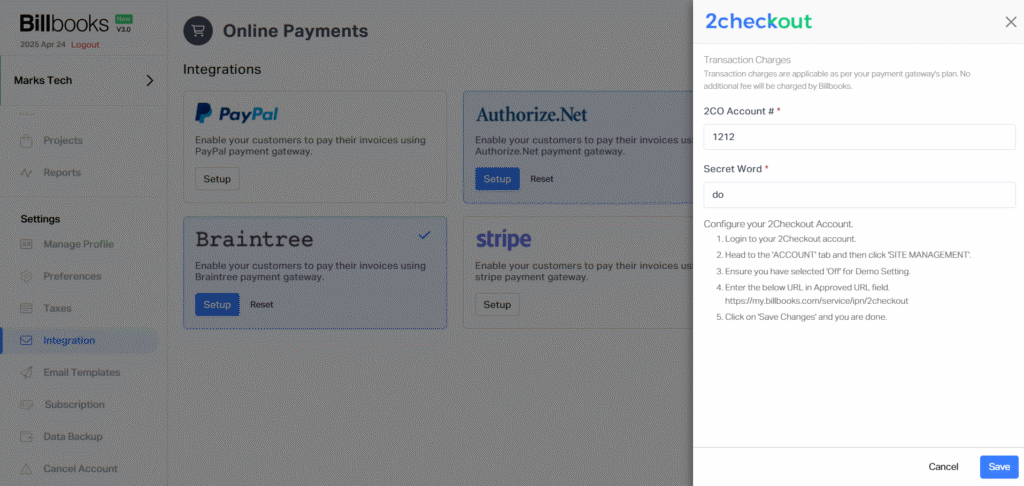
- 2Checkout: Click on Setup, enter your 2CO Account ID and Secret Word, then click Save.
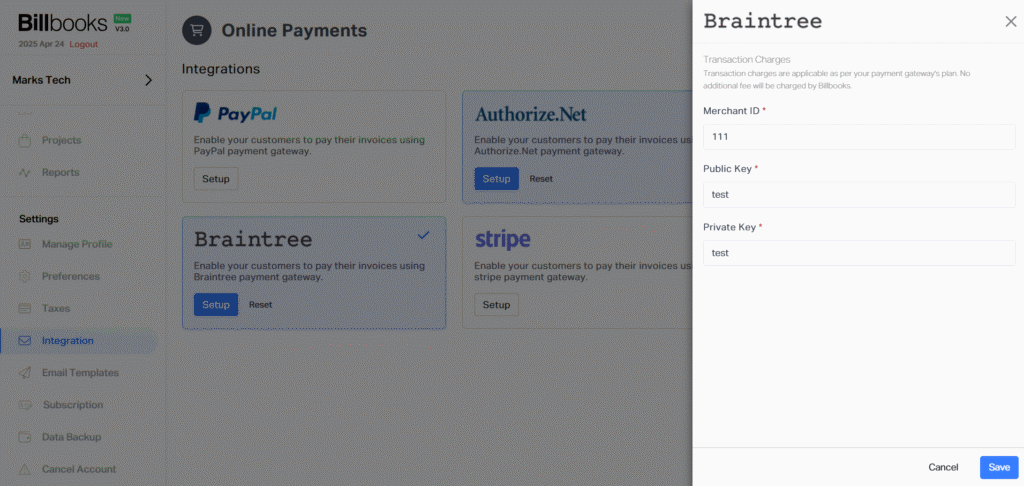
- Braintree: Click on Setup, enter your Merchant ID, Public Key, and Private Key, then click Save.
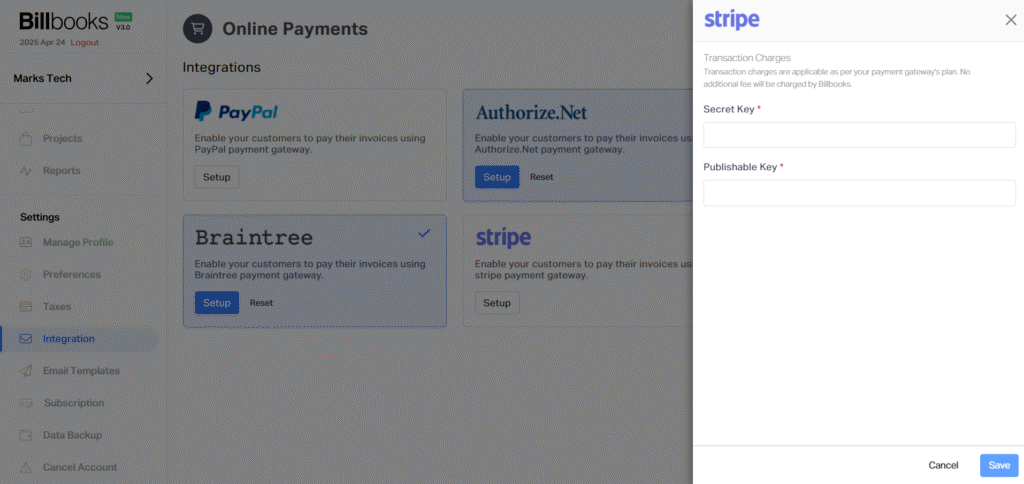
- Stripe: Click on Setup, enter your Secret Key and Publishable Key, then click Save.
Once set up, your customers will be able to make secure payments directly through the invoices you send.